
Vedu Download Problems and Solutions
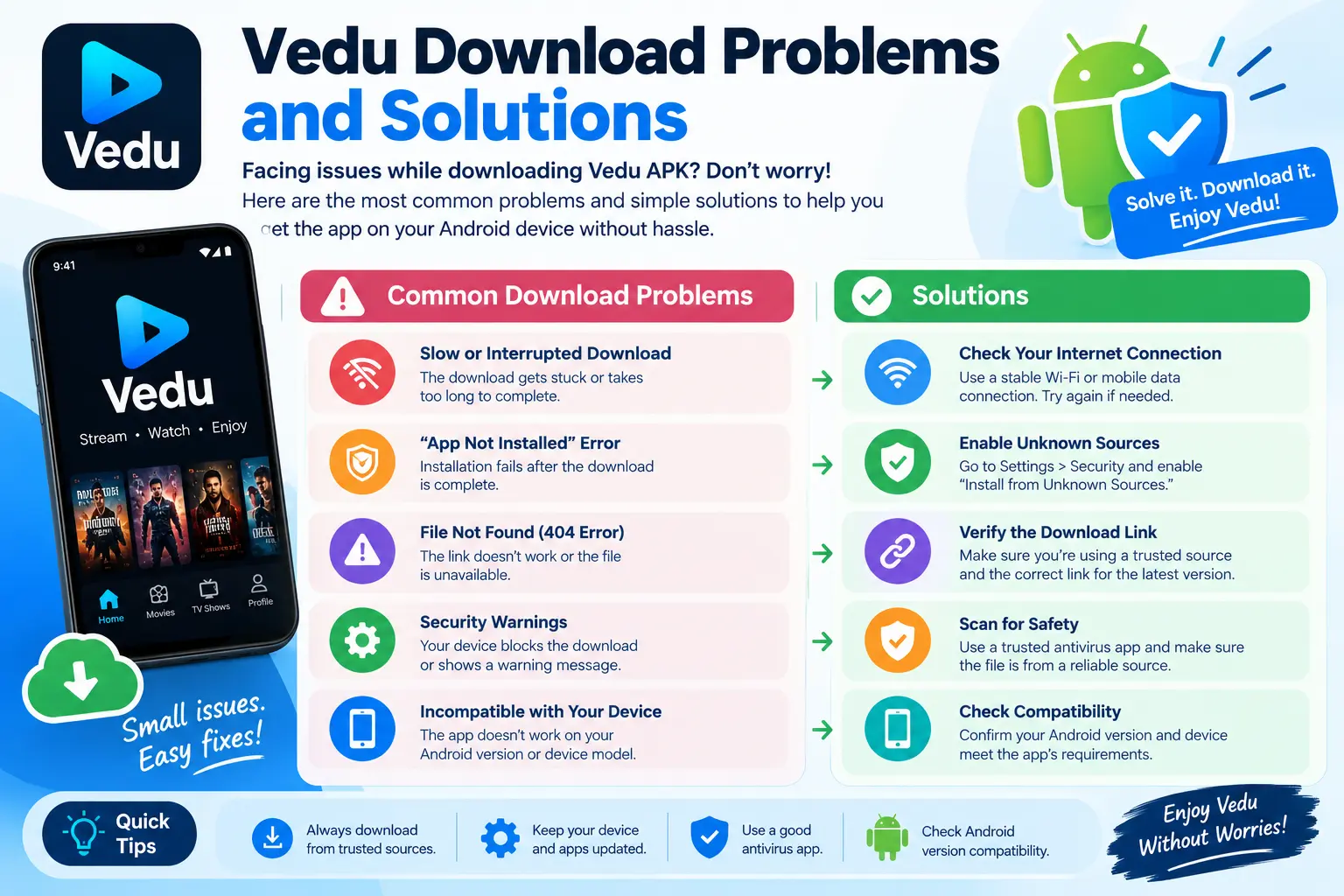
Downloading an app or APK can sometimes fail because of browser issues, network problems, insufficient storage, compatibility restrictions, or an unreliable file source. If you are experiencing Vedu download problems, identifying the exact cause can make troubleshooting much easier.
This guide explains common Vedu download issues and practical ways to resolve them without confusing download problems with installation or playback errors.
Common Vedu Download Problems
Vedu may fail to download for several reasons. Some problems are related to the internet connection, while others can come from the browser, device storage, or the file source.
Common issues include:
- Vedu APK download not starting
- Download stopping before completion
- Download speed becoming very slow
- APK file appearing incomplete or corrupted
- Browser blocking the download
- Downloaded file disappearing
- Insufficient storage on the device
- An incompatible APK being downloaded
Before trying advanced troubleshooting, identify whether the problem occurs before the download starts, during the download, or after the file has been saved.
Vedu Download Is Not Starting
If the Vedu download button does nothing, first check your internet connection. Try opening another website to determine whether the connection is working normally.
You can also try:
- Refreshing the download page.
- Closing and reopening the browser.
- Switching between Wi-Fi and mobile data.
- Trying another supported browser.
- Checking whether the download is being blocked by the browser.
If other downloads also fail, the issue is more likely related to the device or network rather than the Vedu file itself.
Vedu Download Keeps Stopping
A download that starts but stops partway through can be caused by an unstable connection, browser restrictions, or limited device storage.
Check your available storage first. Large files may require additional free space beyond the displayed file size because the device and browser may need temporary storage during the download process.
If storage is sufficient, reconnect to a stable network and start the download again.
Avoid repeatedly downloading the same incomplete file. If the downloaded file has an unexpected size or cannot be opened, delete the incomplete copy and obtain the current file from a source you trust.
Vedu Download Is Very Slow
Slow download speeds are often related to network congestion or the server hosting the file.
You can try:
- Moving closer to your Wi-Fi router.
- Temporarily disconnecting other heavy downloads.
- Switching to a more stable network.
- Restarting your browser.
- Trying the download at another time.
If normal websites load quickly but one particular file remains extremely slow, the problem may be associated with the file host rather than your internet connection.
Vedu APK File Is Corrupted
A corrupted APK may occur when a download is interrupted or the file is incomplete.
If the file cannot be opened or your device reports that the package is invalid, do not assume that repeatedly installing it will solve the problem. Instead, remove the incomplete file and download a fresh copy from a trustworthy source.
You should also be careful with APK files from unknown websites. A file having the correct-looking name does not automatically mean it is an original or safe application.
For more information, see our Vedu App Download and Vedu Safety guides.
Check Your Device Storage
Low storage is an easy-to-miss reason for download failures.
Open your device’s storage settings and check how much free space is available. If storage is nearly full, remove unnecessary files or move personal media to another suitable location.
After freeing enough space, restart the download.
Browser or Security Restrictions
Some browsers and Android security features may warn about APK downloads, particularly when a file comes from an unfamiliar source.
Do not ignore security warnings simply to complete a download. Instead, verify the source and make sure you understand what file you are downloading.
If you are unsure about a particular APK, it is safer not to install it.
Downloaded File Cannot Be Found
After a successful download, the APK may not appear on your home screen. Check your browser’s Downloads section or the device’s Downloads folder.
The exact location can vary depending on the browser, Android version, and device manufacturer.
If you cannot find the file, search the device’s file manager for the downloaded filename.
Download vs Installation Problems
It is important to distinguish between downloading and installing.
Download problem: The APK does not download, stops, or produces an incomplete file.
Installation problem: The APK has already been downloaded but Android refuses to install it.
If the file downloads successfully but will not install, the issue may involve compatibility, permissions, an existing app version, or a damaged APK. In that situation, follow the Vedu App Install guide rather than repeatedly downloading the same file.
When You Should Download Again
A fresh download may be appropriate when:
- The download was interrupted.
- The file size looks incomplete.
- The APK cannot be opened.
- The file appears damaged.
- The download was interrupted by a network failure.
Always obtain the replacement file from a source you trust and avoid modified or suspicious APK files.
Final Thoughts
Vedu download problems can usually be narrowed down by checking the internet connection, available storage, browser behavior, file integrity, and device compatibility. Start with simple checks before attempting more complicated troubleshooting.
If the download completes but installation fails, move to the appropriate installation guide. If the app installs successfully but later crashes or fails to play content, that is a separate troubleshooting issue.